Menu design
Give your menu a fresh look.
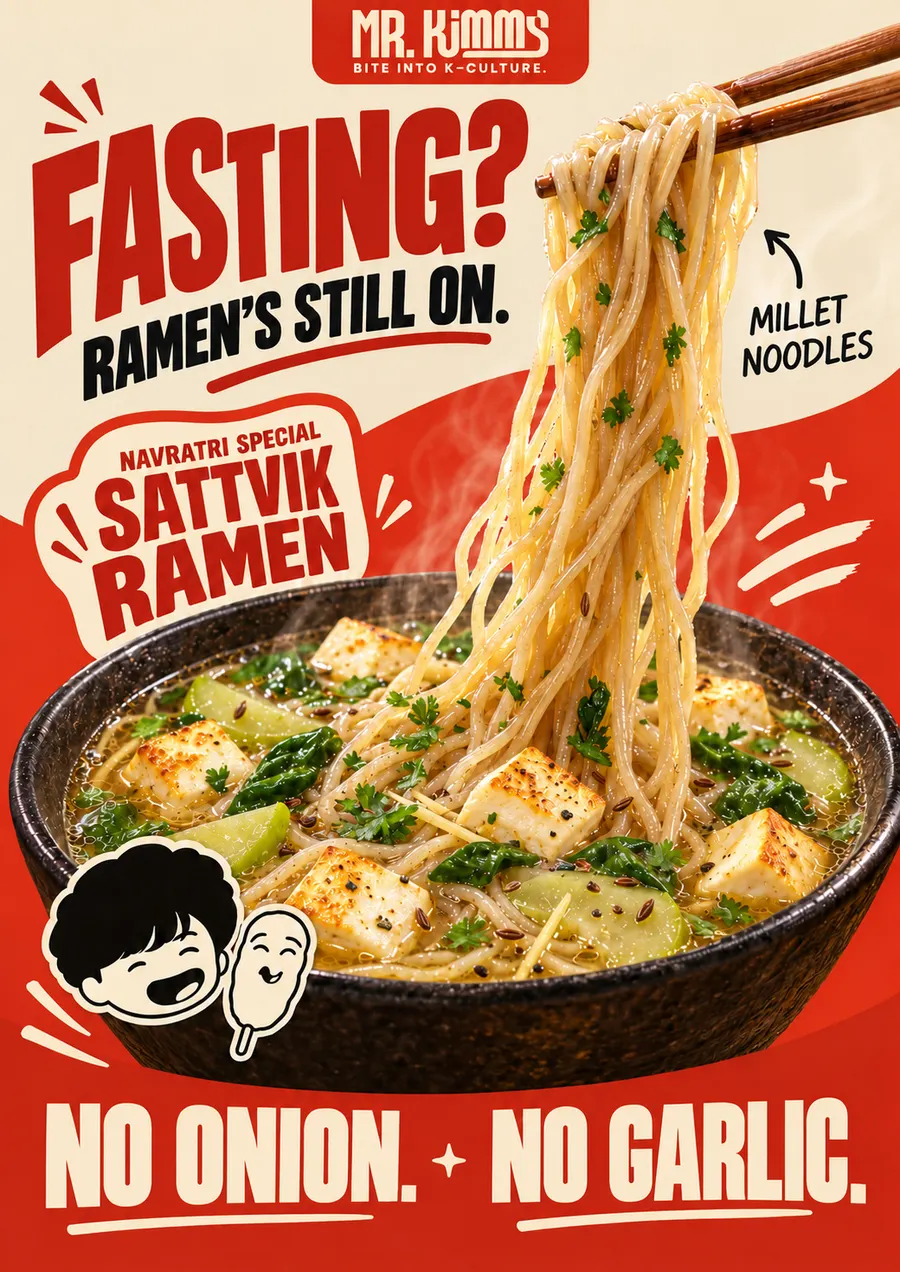
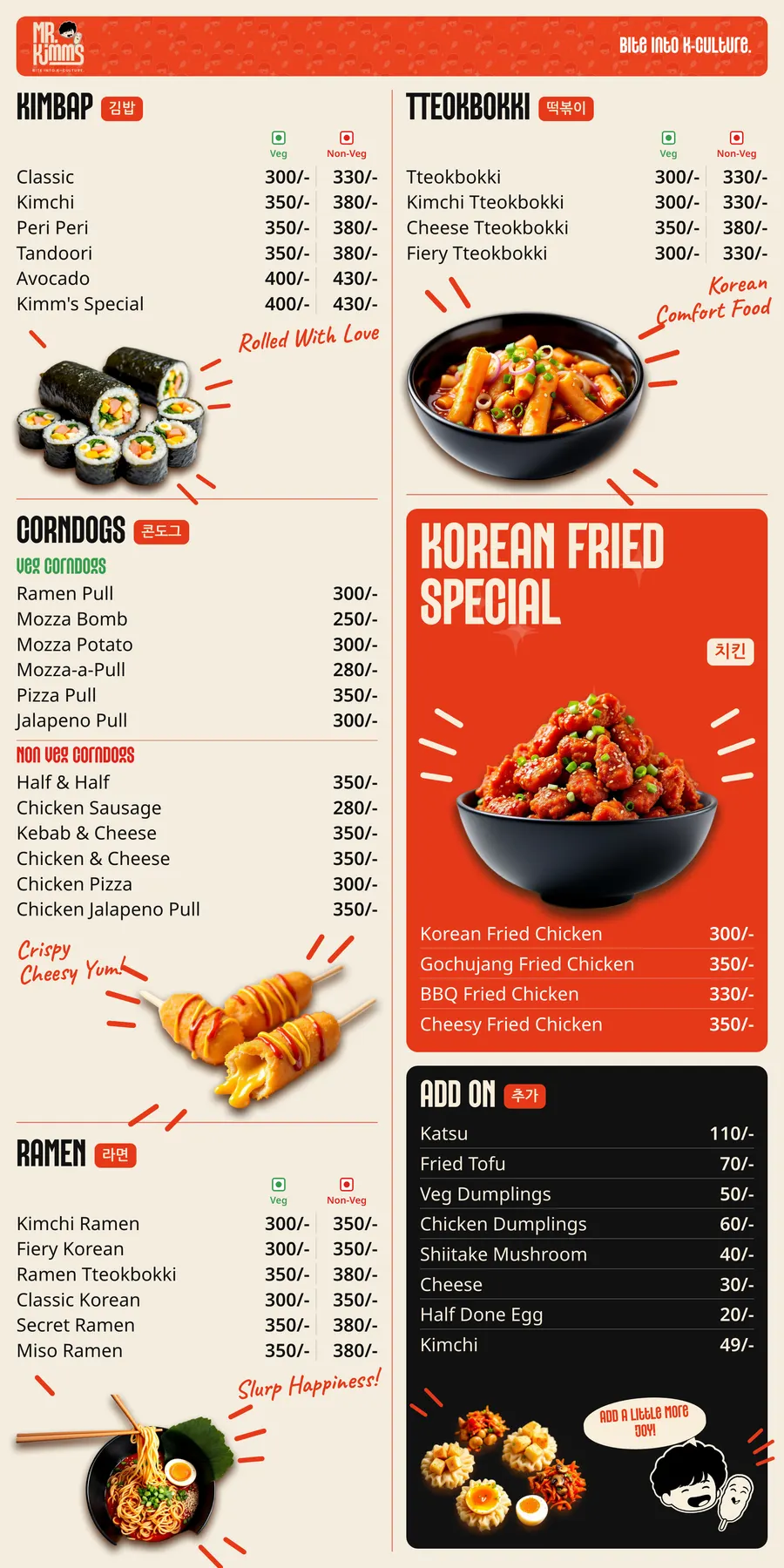
Gloo AI Studio helps you turn your restaurant’s dishes, sections, prices and photos into a designed menu. Bring your original menu or item list, review the extracted details, choose a style and preview the layout before exporting.
Creation opens in Gloo AI Studio.
From the showcase
See it in action.
Explore Studio samples and finished pieces by the Gloo team.
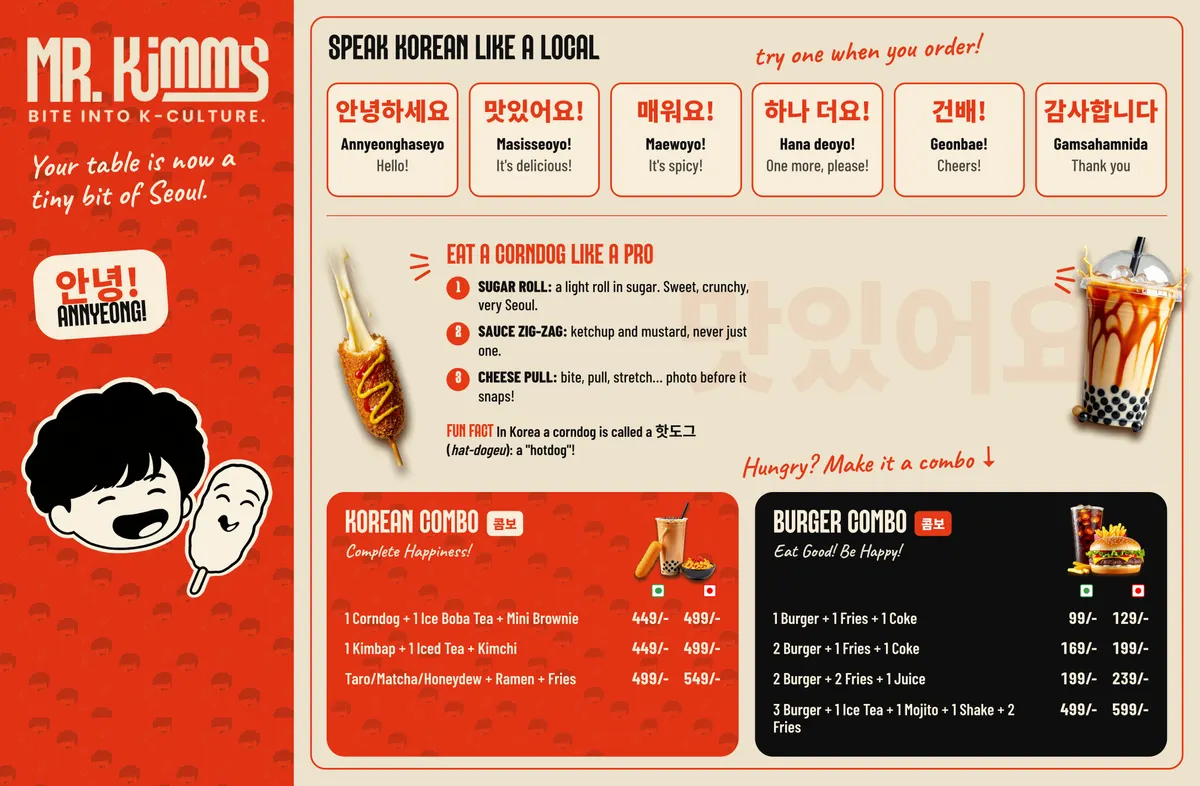
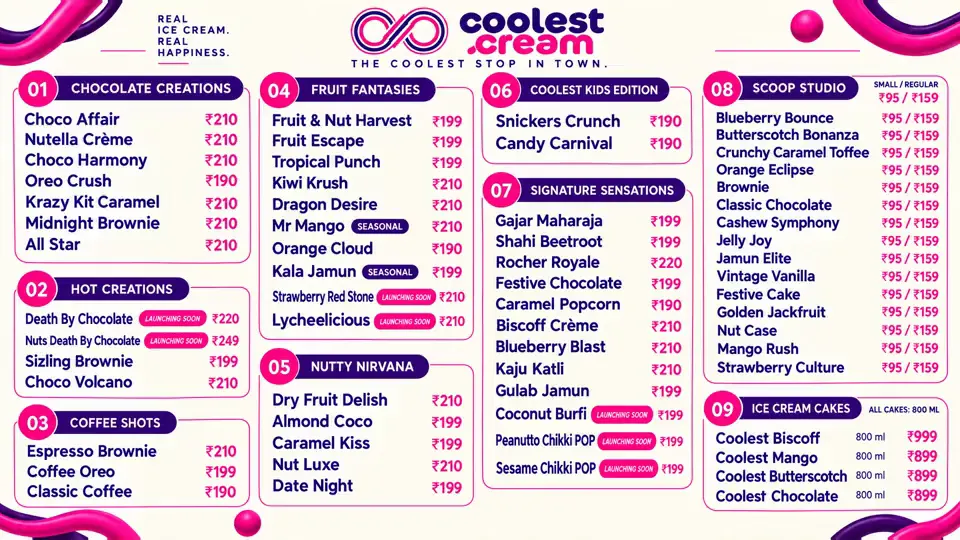
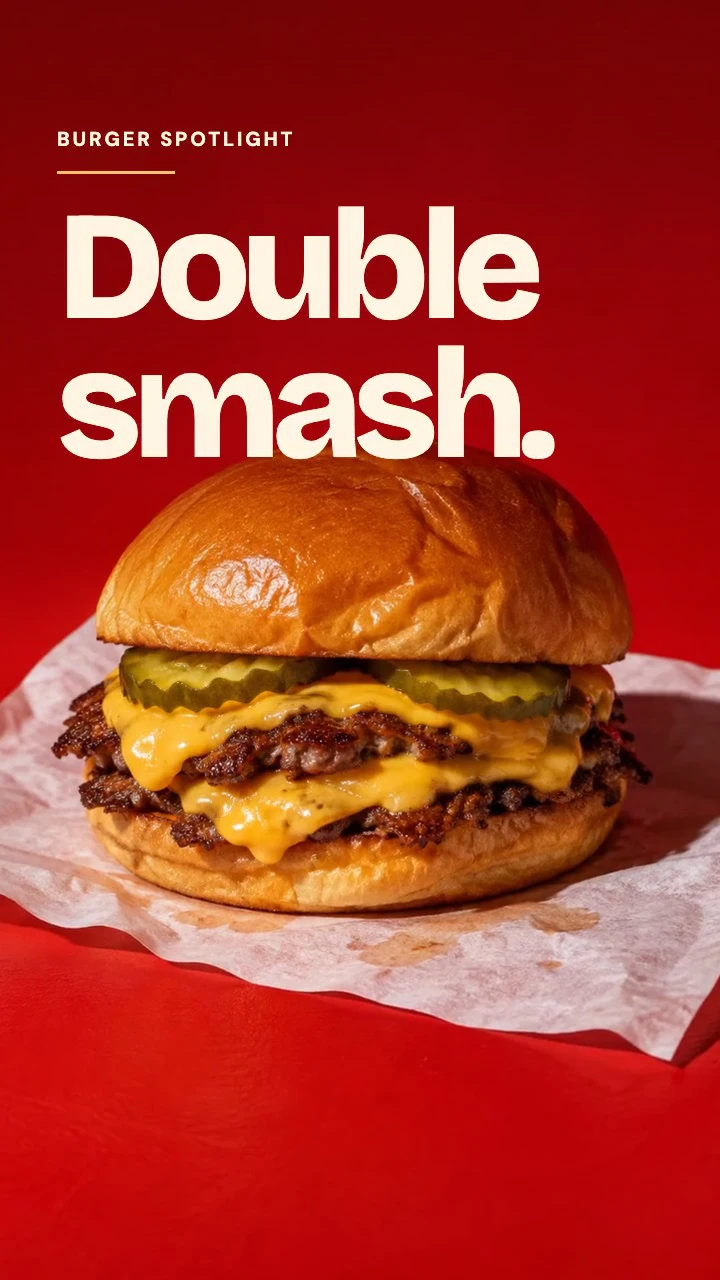
What you get
- A menu layout based on the dishes and sections you approve
- Style options for restaurant menus, café menus and menu boards
- An export preview with format and pricing details in Studio
Who it's for
- Restaurants
- Refresh a full dine-in menu with clear sections and readable prices.
- Cafés and quick service
- Lay out drinks, sizes and specials for a counter menu or board.
How it works
Three steps. That's it.
Bring your existing menu
Start with your current menu or create an item list in Studio.
Check dishes and prices
Review the extracted details and choose a layout suited to print or screen.
Preview the design
Check how it reads at the actual viewing size before exporting.
Good to know
- Verify prices and dietary information before publishing.
- Separate frequently changing offers from fixed menu items.
- Keep a distinct landscape version for a TV menu board.
Related Gloo tools
Restaurant menu generatorQuestions
Before you start.
Yes. Import your source menu and check the extracted items before choosing a new design.
Yes. Preview the menu in Studio and check the format and any export cost before confirming.